TIDYKEEPERS
Quality coaching for aspiring young goalkeepers
Managing a Member Record
Logging In
You can log into your member record via my.coacha.app. Please use the email address and password for the member (if over 18) or the parent/guardian for members under the age of 18. If you set up multiple records for siblings, all details will be shown once logged in.
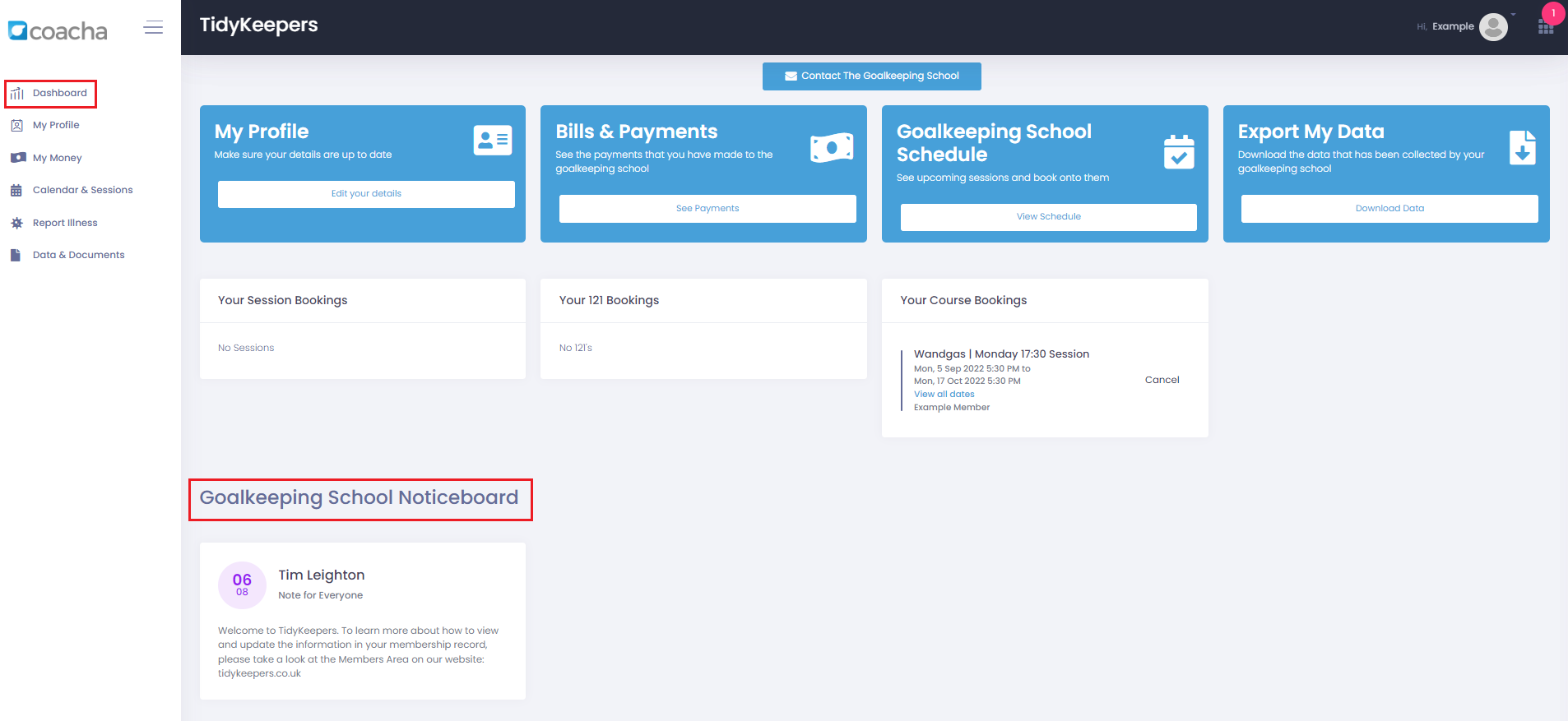
TidyKeepers Noticeboard
To view all members notices on the TidyKeepers noticeboard, click on the Dashboard side menu button. This section will typically be used to provide advanced notice to members (or parents/guardians) of term dates, holiday courses etc before courses are released for booking.
Updating Details
You can amend and update member details via the My Profile side menu button.
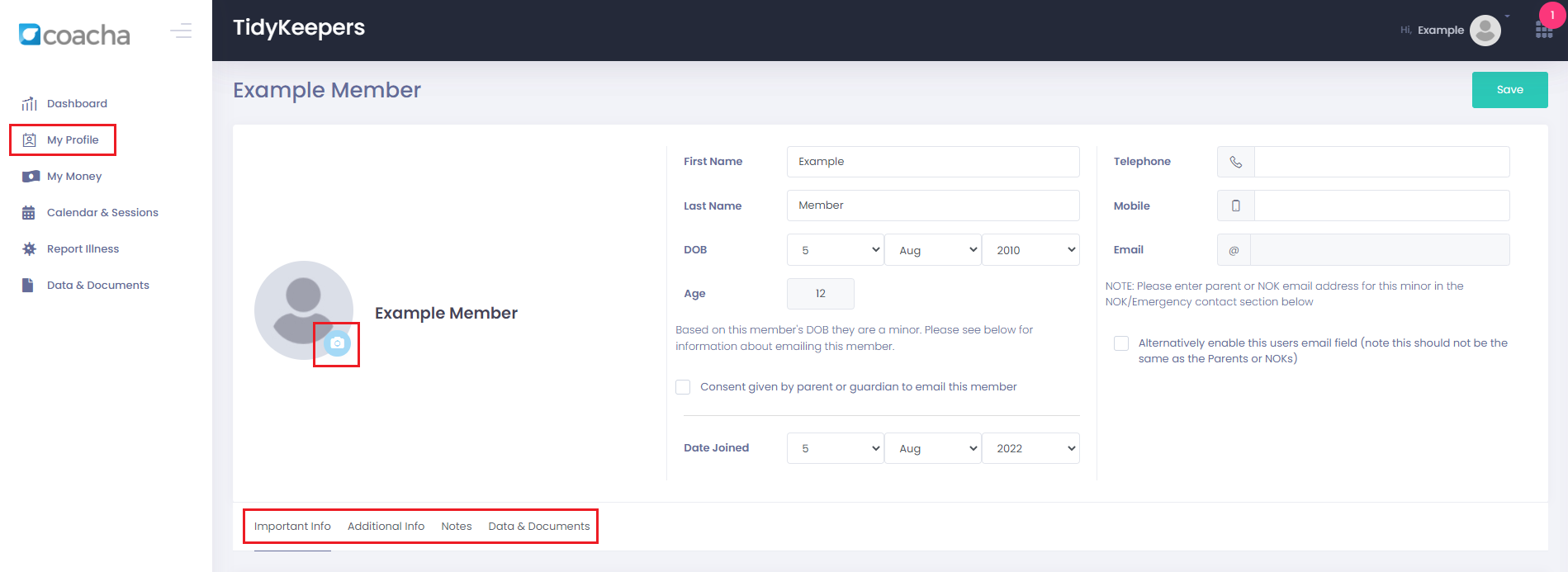
Whilst a member photo is not mandatory, adding one will help us identify the member during sessions. You can be assured that TidyKeepers will not use a member photo for any other purpose.
There are four tabs below the member photo where all other information is located:
Important Info
This section contains core information including member address and Next of Kin (Parent/Guardian) / Emergency Contacts
Additional Info
This section contains additional fields set up by TidyKeepers that will need to be updated from time to time. None of this information is mandatory, but will assist TidyKeepers place the member into the correct session groups.
Notes
This section includes the medical information provided as part of the sign up form. Please be sure to keep this section updated to ensure TidyKeepers can refer to accurate information in the event of an emergency.
Data & Documents
This section contains your data protection preferences and any TidyKeepers documentation such as Terms & Conditions, Privacy & Safeguarding Policies.
Booking a Course
To book an upcoming course block, click on the Calendar & Session side menu button. The calendar view shows session dates for all courses available to the member. The calendar can be set to a month or week (default) view and the < > buttons will move the calendar backwards and forwards.

Book Onto Session (Course)
This section allows you to select from the available course based on the selected member (subscriber). In most cases, only one or two course may be displayed. This is because TidyKeepers groups member records to ensure the right courses are displayed based on the venue, menu age and ability.
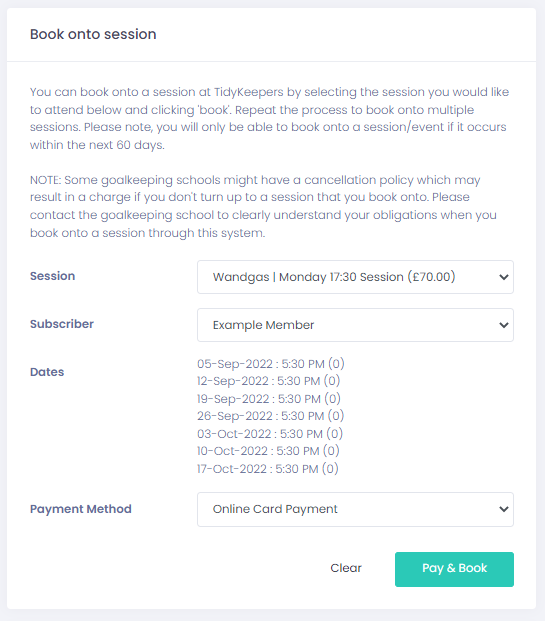
Once a course is selected, you can click on the Pay & Book button to be taken to the payment screen.
Your Course Bookings
This section will display the details of existing courses booked based on the month or week selected in the calendar.

Viewing Subscriptions and Payments
To view details of subscriptions and past payments, click on the My Money side menu button.
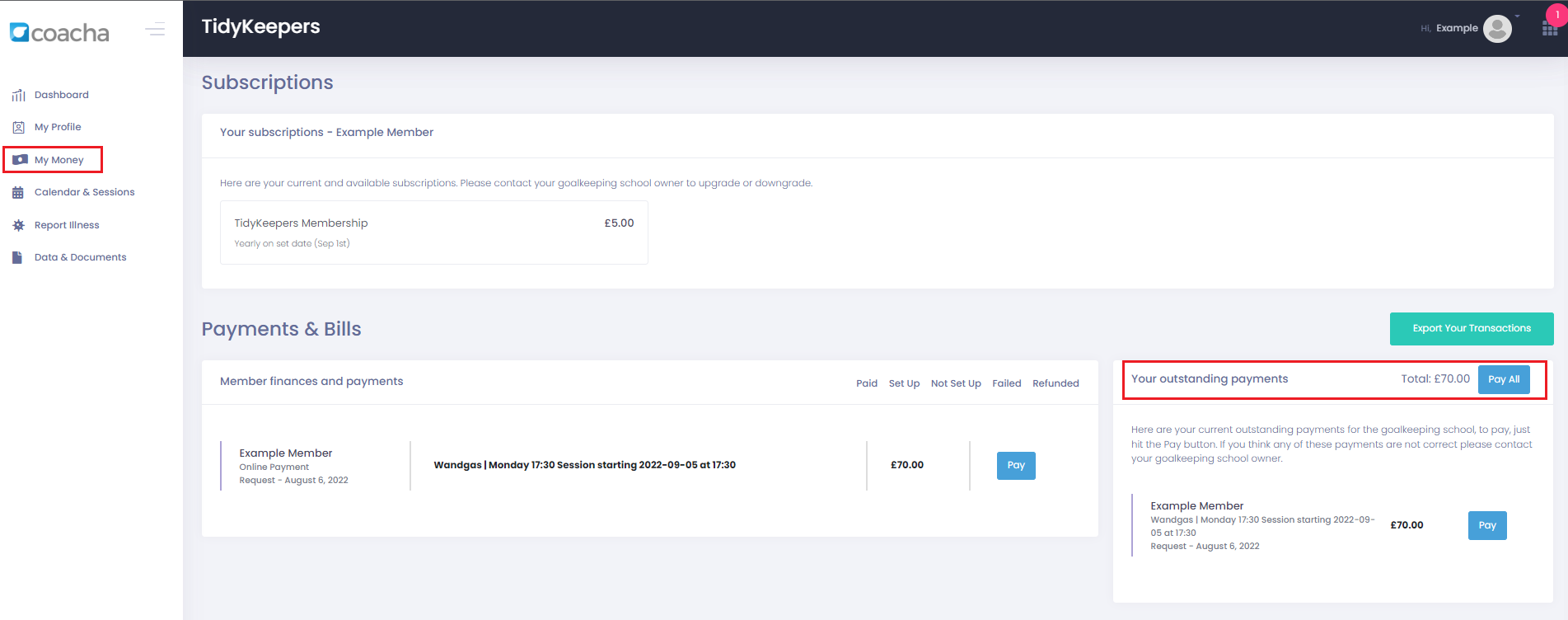
After your initial annual membership fee has been paid as part of subscribing as a member, all future subscription fees will be payable via the My Money section of the member record using the Pay or Pay All buttons.
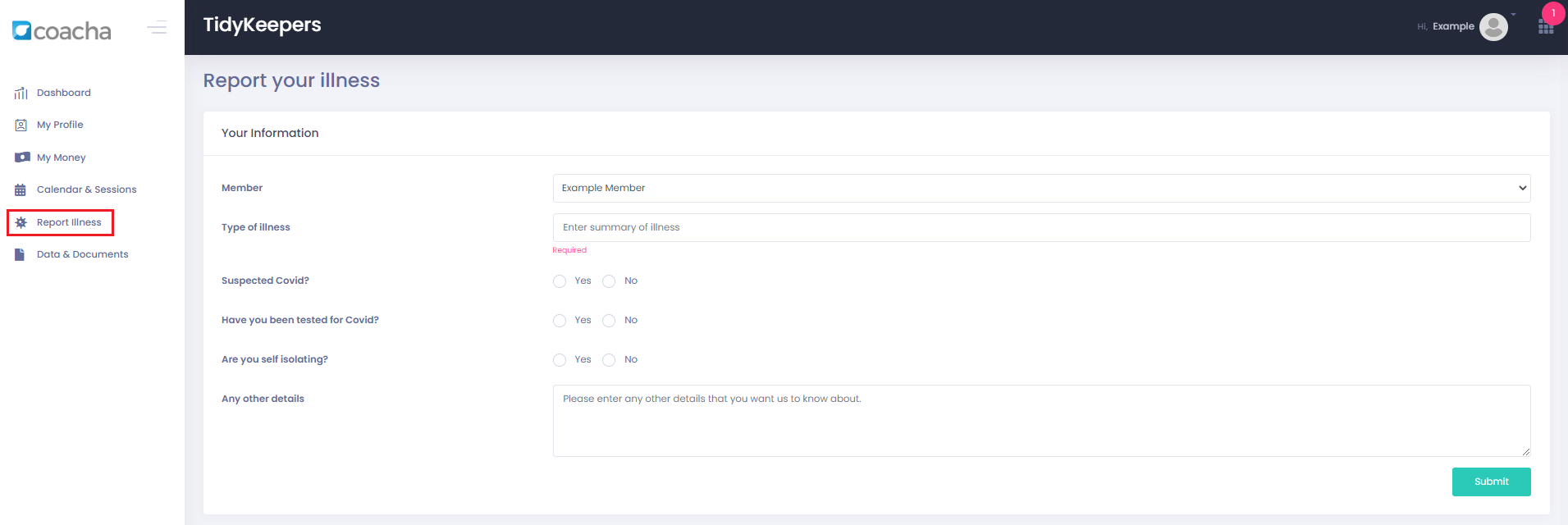
Reporting an Illness
Although not mandatory, a member can choose to inform TidyKeepers of their illness or a new injury if unable to attend a session. Clicking the submit button will send a notification to TidyKeepers, but it will not be logged as a note against the member record.